How to Update BMW iDrive Software (OTA and USB)
Short answer: A BMW iDrive software update comes in two completely different flavors. Remote Software Upgrade — over-the-air vehicle software, available since BMW Operating System 7 launched in 2018 — updates the car itself: new features, bug fixes, and improvements delivered to the car directly or through the My BMW App, then installed in one session the car prepares in the background. USB updates are the older, narrower kind: multimedia and Bluetooth compatibility data you load from a flash drive, mostly for pre-2018 systems. Which one your car gets depends on its iDrive generation, equipment, and market — not just its model year. This guide explains both methods step by step, shows you how to check what your car supports, decodes BMW’s version numbers, and includes an interactive tool that picks the right method for your exact car.
In this guide
- The two kinds of BMW software update (and why people confuse them)
- Remote Software Upgrade: what it is and which cars get it
- How an over-the-air update works, step by step
- Updating through the My BMW App
- Decoding BMW’s version numbers
- What actually changes when you update
- USB updates: maps and Bluetooth compatibility for older cars
- When the dealer has to do it
- Troubleshooting failed or stuck updates
- Interactive: which update method does your car use?
- Quiz: OTA or USB?
- Five frequently asked questions
First: there are two kinds of “software update”
Most confusion about BMW software updates comes from one word covering two different things. Before anything else, learn which one you are dealing with:
| Remote Software Upgrade (OTA) | USB software update (legacy) | |
|---|---|---|
| What it updates | The vehicle’s software itself — iDrive, driver assistance, powertrain control modules | Multimedia and phone compatibility data (Bluetooth profiles, device support) |
| How it arrives | Over the air to the car, or via the My BMW App | Downloaded to a USB flash drive from BMW, plugged into the car |
| Which cars | BMW Operating System 7 and newer (from 2018), 30+ models, equipment and market dependent | Mostly pre-2018 iDrive systems (iDrive 4/5/6 era) |
| Size of change | New features, improvements, bug fixes across the car | Keeps your phone pairing and media playback working with newer devices |
| Cost | Free | Free |
Map updates are a third, separate category — navigation data, not vehicle software — and dealer programming (where a technician flashes control modules with factory tools) is a fourth. This guide covers all four, but the star is Remote Software Upgrade, because it is the one that changed what BMW ownership feels like: your car gaining features while parked in your driveway.
A short history: from dealer-only to over-the-air
It helps to know how recent all of this is. For most of BMW’s history, “software update” meant a dealer visit: a technician connected the factory diagnostic system and flashed control modules one by one, usually during a service appointment. Owners never saw version numbers and never chose to update — software changed only when something was broken or a campaign required it.
The first crack in that model was the USB compatibility update of the iDrive 4/5/6 era: BMW letting owners refresh phone and media compatibility themselves, without an appointment. It was narrow — compatibility data, not firmware — but it established the idea that car software could be owner-serviceable. Remote Software Upgrade, arriving with Operating System 7 in 2018, was the real break: the first time a BMW could gain features and fixes the way a phone does, in your driveway, on your schedule. Every operating system since has kept and extended it, and the 30+ model coverage BMW cites makes it one of the industry’s broadest OTA programs. If your car has it, you are living in the second era; if it does not, you are maintaining a first-era car — which is fine, as long as you use the right method for it.
Remote Software Upgrade: the over-the-air era
BMW introduced Remote Software Upgrade with BMW Operating System 7 in 2018, and it has been standard on every new operating system since. The concept is the same as your phone’s OS updates: BMW develops a software package, your car downloads it, and you install it when convenient — no dealer visit, no appointment, no labor charge. BMW’s own software-updates page describes the rollout across more than 30 models, making it one of the broadest OTA programs in the industry.
But — and this is the part forums get wrong — eligibility is not determined by model year alone. Whether your car can receive Remote Software Upgrades depends on its iDrive generation, its equipment (the car needs the right connectivity hardware), its market (rollouts vary by country), and the software already installed. A 2019 3 Series with Operating System 7 is generally eligible; a 2019 3 Series built with an older iDrive in some market may not be. If you are unsure which iDrive generation your car has, our iDrive generations guide shows you how to identify it in about a minute.
The definitive eligibility check
Forget model-year charts. The authoritative answer lives in your car: open the iDrive menu and look for “Remote Software Upgrade” in the vehicle settings. If the menu item exists, your car supports OTA updates — full stop. If it does not exist, your car predates the program (or lacks the hardware), and USB-based updates are your path. This single check beats every eligibility table on the internet, because it reads your car’s actual equipment instead of guessing from its birth year.
How an over-the-air update works, step by step
BMW offers two delivery routes for the same update package. The car route is simplest; the app route exists for cars or situations where the direct download is slow or unavailable. Here is the full sequence:
Route 1: direct to the car
- 1. BMW publishes the upgrade. New software versions roll out in waves by model, market, and current version — not every car gets every version on day one.
- 2. The car downloads it. Using its built-in mobile connection, the car pulls the package in the background while you drive. You do not have to do anything, and driving is unaffected.
- 3. The car prepares the installation. Once downloaded, the vehicle readies the package in the background — verifying it, staging it, and checking that installation conditions can be met.
- 4. You get prompted. When everything is ready, iDrive notifies you that an upgrade is available to install. Nothing installs without your confirmation.
- 5. You install it parked. The car must be stationary with conditions met (sufficient battery charge, engine off or as instructed). BMW has said a major update typically takes less than about 20 minutes — but treat the release notes and the in-car estimate as the real number for your specific version, not a promise.
- 6. The car restarts its systems. After installation, iDrive reboots into the new version. Your settings, profiles, and pairings carry over.
Route 2: through the My BMW App
- 1. The app downloads the package. With your phone on Wi-Fi, the My BMW App pulls the upgrade package in the background.
- 2. Phone meets car. With the phone connected and the vehicle being driven, the package transfers from the phone to the car.
- 3. Same finish as Route 1. The car prepares the installation, prompts you, and you install it parked.
The app route is genuinely useful in areas with weak mobile coverage or for large packages — your home Wi-Fi does the heavy lifting instead of the car’s cellular connection. Our My BMW App guide covers the app’s setup and the features beyond updates (remote lock, climate preconditioning, charge management) if you have not explored them.
The sequence rule: BMW only offers the next valid upgrade
One of BMW’s smartest design decisions: the car only ever offers you the next valid upgrade in sequence. You cannot skip versions, install an incompatible package, or brick the car by choosing the wrong file — because there is no choosing. If your car is three versions behind, you will be offered the immediate next one; after installing it, the following one becomes available. This is why “my car says no update available but my friend’s got one” is normal: the rollout waves, your current version, and your market determine what you are offered, and the system will not let you jump the queue.
One practical consequence: patience is a strategy. Owners who check daily and fret about being “behind” are fighting a rollout system designed to reach them in its own time. If the menu says no update is available, that is the system telling you the truth — there is nothing for your car right now. Check monthly, not daily, and let the car notify you.
Decoding BMW’s version numbers
BMW software versions look like 20-07 or 22-11 — a two-digit year, a dash, and a two-digit month or release index. So 20-07 is a 2020 release, and higher numbers are newer. The format tells you when the software was released, not what is in it: two cars on “23-07” have the same release, but the actual features depend on the model and equipment. When BMW’s release notes mention an “intermediate version,” that is the sequence rule in action — a stepping-stone release your car must install before the headline version becomes available.
Practical use: when a forum thread says “the new update fixed my CarPlay drops,” check which version they mean and which version you are on (Vehicle settings → Remote Software Upgrade → installed version). If you are behind their version, your car will be offered the intermediate steps first. Do not hunt for version files online — BMW does not distribute installable packages outside its own channels, and third-party “firmware downloads” are how cars get bricked.
What actually changes when you update
Remote Software Upgrades are real vehicle updates, not just infotainment themes. Depending on the version and your car, an upgrade can bring:
- New iDrive features — interface improvements, new apps and widgets, expanded voice-assistant capability.
- Driver-assistance refinements — tuning and behavior improvements for cruise, lane keeping, and parking systems where the hardware supports it.
- Powertrain and chassis calibration updates — smoother stop-start, refined shift behavior, efficiency improvements.
- Bug fixes — the unglamorous majority: Bluetooth stability, CarPlay/Android Auto reliability, navigation quirks, random reboots.
- New digital services — features BMW adds to the connected ecosystem that your car’s hardware can support.
What an update can not do is add hardware you do not have. No software version gives a car without the 5G eSIM a 5G connection, or a car without the parking hardware automated parking. BMW’s release notes for each version spell out exactly what is included — read them in the car or the app before installing, the way you would read a phone update’s changelog.
Before you update: the pre-flight checklist
OTA updates are designed to be foolproof, but a minute of preparation prevents the common failure modes:
- Read the release notes first. Every Remote Software Upgrade shows what is included before you confirm. Skim them — occasionally an update changes a behavior you rely on (a driver-assistance default, a menu location), and knowing in advance beats discovering it on the highway.
- Charge the battery. Installation is blocked or risky on a low battery; the car checks this itself, but a healthy charge beforehand avoids the “conditions not met” loop. If the car sits unused for weeks, put it on a charger the night before.
- Pick your moment. The car is unusable during installation — do not start it ten minutes before school pickup. Evenings at home are ideal.
- Use Wi-Fi for the app route. If you are updating through the My BMW App, do the phone-side download on home Wi-Fi, not mobile data; the packages are large.
- Do not interrupt it. Once installation starts, leave the car alone — no ignition cycling, no door-lock panic. It will tell you when it is done.
After the update: what to verify
- Confirm the version. Check Vehicle settings → Remote Software Upgrade and verify the installed version matches what was offered. If it does not, the install may have rolled back — retry once under good conditions.
- Test your phone pairing. Bluetooth and CarPlay/Android Auto are the most common post-update hiccups. If anything misbehaves, reboot iDrive (hold the volume knob until the screen restarts) and re-pair from scratch before assuming the update broke something.
- Check your settings. Profiles, seat memory, and driver-assistance preferences almost always carry over — but a 30-second glance at your usual settings catches the rare reset.
- Give it a drive. Powertrain and chassis calibrations sometimes included in updates only reveal themselves on the road. One normal drive tells you more than an hour of menu inspection.
USB updates: maps and Bluetooth compatibility for older cars
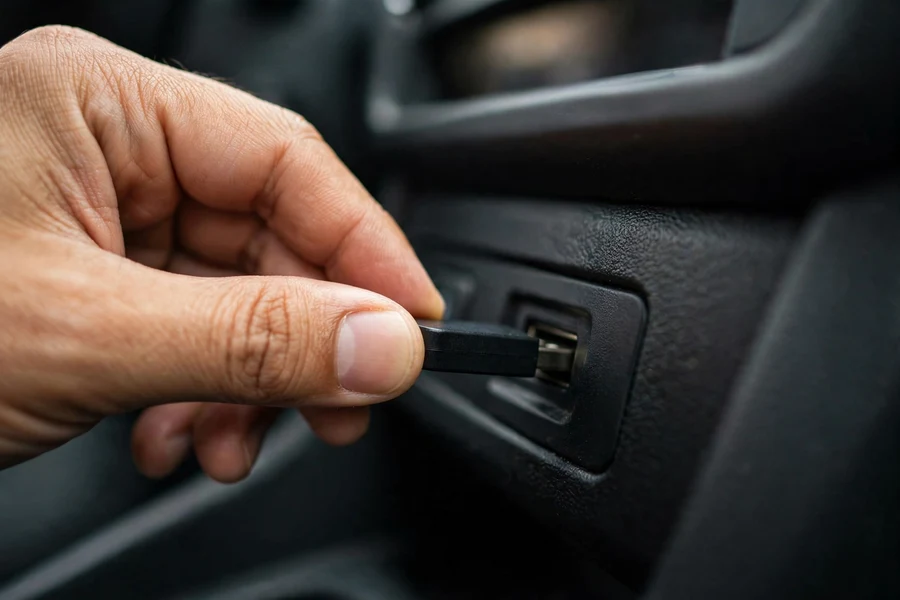
If your car predates Remote Software Upgrade — generally iDrive 4, 5, or 6 era, roughly 2017 and older — “software update” means something narrower. BMW’s classic USB update packages contain multimedia and telephone compatibility data: the profiles and device definitions that let your car pair with newer phones and play media from newer devices. They do not rewrite the vehicle’s firmware the way an OTA upgrade does.
How a USB update works
- 1. Get the right package. BMW historically distributed these through its software-updates pages by entering your VIN — the VIN matters because the package must match your iDrive version. Using another car’s file is the classic way to waste an afternoon.
- 2. Use a clean flash drive. A freshly formatted USB stick (FAT32), with the update files at the location BMW’s instructions specify — not nested inside extra folders.
- 3. Plug it into the car’s USB port (the center-console or glovebox port your manual designates for data, not just charging) with the ignition on.
- 4. Follow the iDrive prompt. The car detects the package and walks you through installation. Do not switch off the ignition mid-update.
Map updates are separate
Navigation map data updates through its own channel — historically via USB on older systems and over the air on newer ones — and it is versioned independently of vehicle software. A 2024 map update does not mean your vehicle software is current, and a Remote Software Upgrade does not necessarily refresh your maps. Check and update them independently: stale maps are the reason the navigation confidently directs you onto roads that changed two years ago.
When the dealer has to do it
Some software work never comes over the air. You need dealer (or well-equipped independent) programming when:
- A control module is replaced. New modules — a DME, a transmission controller, an iDrive head unit — must be coded and programmed to your specific car with factory tools. No download does this.
- An update fails repeatedly. If a Remote Software Upgrade errors out twice, stop retrying and let a technician look: repeated failed flashes can leave modules in unhappy states.
- A recall or service action requires it. Campaign-related software (emissions updates, for example) is performed and documented by the dealer.
- Retrofits are coded. Adding factory options after the fact (enhanced Bluetooth, CarPlay activation on older cars) is coding work, not an update.
Dealer programming is not free the way OTA updates are — it is billed as labor, and the amount varies by market, dealer, and job (a simple programming session is typically a fraction of an hour to an hour of shop time). Ask for the programming to be itemized separately from any diagnosis so you can see what you are paying for.
Troubleshooting: when updates misbehave
- “No update available” but you expected one. Normal. Rollouts move in waves by model, market, and current version — and the sequence rule means you are only ever offered your next valid step. Check again in a few weeks.
- Download stalls. On the direct-to-car route, weak cellular coverage pauses the download; it resumes as you drive. Switching to the My BMW App route over home Wi-Fi usually finishes it faster.
- Installation will not start. The car checks conditions before installing — battery charge, parked status, and related interlocks. A low battery is the most common blocker; a healthy drive or a charger session first often clears it.
- iDrive acts strangely after an update. Bluetooth pairings dropping, CarPlay refusing to connect, or a sluggish interface right after an upgrade usually resolve with the classic fix: reboot iDrive (hold the volume knob until the screen restarts) and re-pair the phone. Our iDrive reboot and Bluetooth pairing guide walks through the full sequence.
- Update failed outright. Note the exact message and version, try once more under good conditions (strong signal or app route, healthy battery), and if it fails again, book a dealer visit rather than forcing it.
Interactive: which update method does your car use?
Select your iDrive generation and what you want to update. The finder tells you the right method, the exact steps, and what to expect.
Quiz: OTA or USB?
Five scenarios. Pick the right update method for each — the way your car would want you to.
1. Your 2021 3 Series (iDrive 7) offers new driver-assistance refinements. You get them via…
2. Your 2015 3 Series (iDrive 4) will not pair with your new phone. First thing to try: the…
3. The definitive check for whether your car supports over-the-air updates is…
4. A control module was replaced and must be coded to your car. That requires…
5. Your navigation keeps routing you onto roads that changed two years ago. Most likely…
iDrive software updates: five frequently asked questions
Yes. Remote Software Upgrades and USB compatibility updates are both free — BMW does not charge for the packages or the installation. The only software work you pay for is dealer programming (module coding, retrofits), which is billed as labor.
Look for “Remote Software Upgrade” in the iDrive vehicle settings menu. If the entry exists, your car supports OTA updates. The program started with BMW Operating System 7 in 2018 and covers 30+ models, but eligibility also depends on equipment and market — the menu check beats any model-year chart.
The download happens in the background while you drive, so it costs you no time. The installation itself happens parked: BMW has said major updates typically take less than about 20 minutes, but use the release notes and the in-car estimate for your specific version rather than treating that as a promise. Plan for the car to be unavailable during the install.
On pre-2018 iDrive systems (roughly iDrive 4/5/6), yes — but those USB packages update multimedia and Bluetooth compatibility data, not the vehicle’s firmware. On Operating System 7 and newer, vehicle software arrives over the air via Remote Software Upgrade, and the old USB method is largely obsolete. Use the VIN-matched package, never a forum download.
Sometimes — Remote Software Upgrades have added iDrive features, driver-assistance refinements, and new digital services. But software cannot add hardware: no update gives your car a 5G connection, automated parking, or any feature its physical equipment does not support. Read the release notes for each version to see exactly what is included.