How to Reset BMW iDrive: Reboot + Bluetooth Pairing
A frozen iDrive screen or a phone that pairs but won’t play music rarely means broken hardware. Nine times out of ten, a correctly performed reboot or a clean Bluetooth re-pair fixes it in minutes — but the right button combination depends on your iDrive generation. This guide covers the reboot procedure for every system from CCC to iDrive 8, Bluetooth pairing steps per generation, and what to do when a reboot isn’t enough.
The universal fix: hold the volume knob about 30 seconds until the screen goes black, then let it restart. CCC needs a three-button combination instead, iDrive 8 has a deeper 70-second reset, and Bluetooth menus moved between generations — pick your system below for the exact steps.
Hold the volume knob down for ~30 seconds until the screen goes black — the system restarts on its own. On CCC (2003–2008) hold volume + both eject buttons together instead. On iDrive 8 (OS 8.5), a 70-second hold (screen cycles 3 times) performs a full central-display reset. A soft reset keeps your paired phones, presets and settings; only a factory reset erases them.
In this guide
- The 30-second reboot: how it works
- Reboot method by iDrive generation
- What each reset actually resets (and what it doesn’t)
- iDrive version picker: your exact steps
- Bluetooth pairing guide by generation
- Bluetooth problems and fixes
- Updating iDrive software with a USB drive
- When a reboot isn’t enough
- Repair costs: stated ranges
- Frequently asked questions
The 30-second reboot: how it works
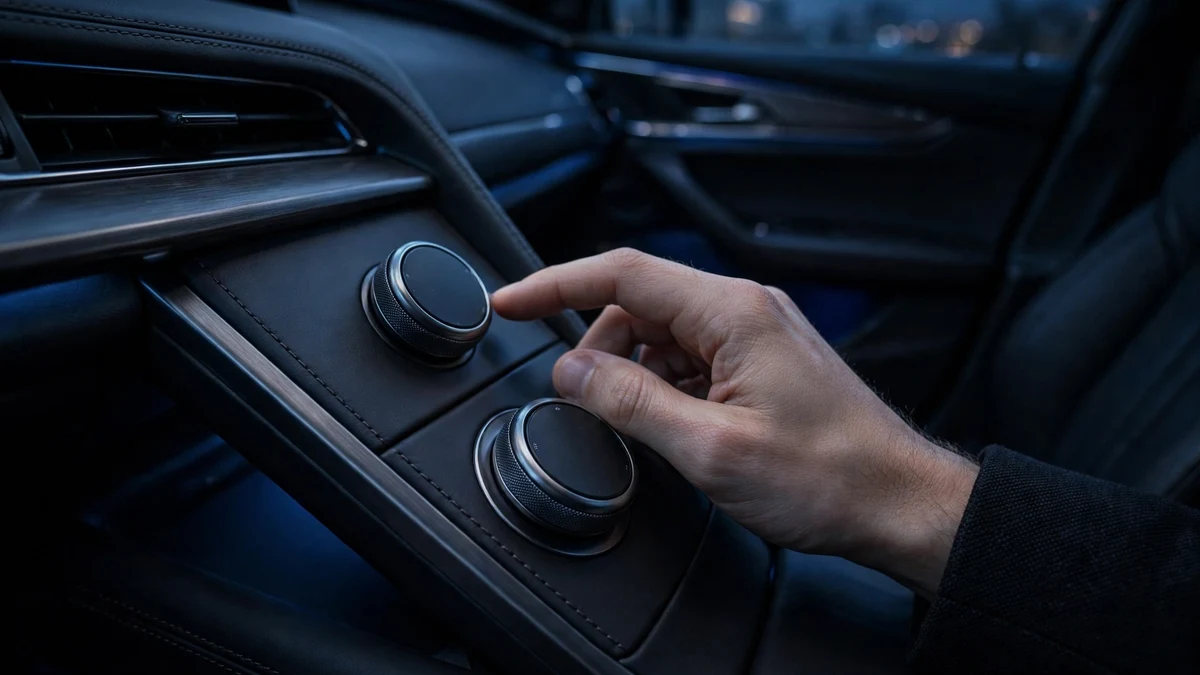
The volume knob doubles as the system’s reset switch. BMW USA’s official guidance is blunt: if the iDrive screen becomes unresponsive or slow, press and hold the volume knob for about 30 seconds. The screen goes black, the head unit restarts, and the BMW splash screen returns within a minute or two — with paired phones, presets and settings intact.
Two details matter. First, use radio-ready state: press start/stop without your foot on the brake so the electronics are awake but the engine is off. Second, modern systems have two reset depths. Release when the screen goes blank (~20–30 seconds) for a soft reset that clears temporary glitches. Keep holding for roughly 70 seconds — the screen turns off, briefly comes back on, then turns off a second time — for a deeper reboot that BMW Geniuses recommend when a soft reset fails. On iDrive 8.5, BMW’s own How-To video documents this extended reset: hold the volume wheels 70 seconds and the display cycles three times.
There is also a free no-button option: lock the car and walk away for 15 minutes. iDrive fully powers down once the car is locked and the electronics sleep, which clears some faults a button reset misses — including stuck Bluetooth states.

Reboot method by iDrive generation
The volume-knob hold works on nearly every BMW from 2009 onward; only CCC needs the three-button combination. For 3 Series owners: CCC = 2005–2008 E90 pre-LCI, CIC = 2009–2011 E90 LCI and early F30, NBT = 2013–2016 F30, NBT EVO/iDrive 6 = 2016–2018 F30 LCI, iDrive 7 = 2019+ G20.
| iDrive version | Years & chassis | Reboot method |
|---|---|---|
| CCC | 2003–2008 (E90/E91/E92/E93 pre-LCI, E60/E61, E63/E64, E70 X5, E71 X6) | Hold the volume button + both eject buttons (CD eject and navigation-DVD eject) simultaneously until the system restarts. |
| CIC | 2009–2013 (E90 LCI, early F30, F10) | Hold the volume/power button 25–30 seconds until the BMW splash screen appears. |
| NBT | 2013–2016 (F30, F10 LCI, early F15) | Hold the volume knob 20–30 seconds until the screen restarts. |
| NBT EVO / iDrive 6 | 2016–2019 (F30 LCI, G30, G01 X3) | Hold the volume knob 20–30 seconds until the screen restarts. |
| iDrive 7 | 2019–2022 (G20, G05 X5, G07 X7) | Press and hold the volume control button at least 30 seconds in radio-ready state; allow a few minutes for the full restart. |
| iDrive 8 | 2022+ (G70 7 Series, iX, i4) | Soft reset: hold the volume wheel ~30 seconds. Full CID reset (OS 8.5): hold ~70 seconds — the screen cycles 3 times. |
Generation-specific notes: on CCC, the documented force-reboot is volume plus both eject buttons together — it restarts the system in under a minute and can free a stuck disc. On CIC, the 25–30 second hold is documented in BMW’s technical literature for the 2009-era E90. On iDrive 7, BMW’s manual specifies the extended hold in radio-ready state; the system may stay dark for several minutes — don’t assume it failed. On iDrive 8, ~20 seconds covers a basic reset (documented for OS 9); the 70-second three-cycle procedure is the deeper reset for OS 8.5.
Model-year applicability notes: the table’s year bands follow the head unit, not the registration date. Cars built around a generational changeover — early 2009 E90s, early-build F30s — can carry either unit, so don’t trust the model year alone: check the installed version in iDrive under Settings → Software update → Show current version before assuming which reboot applies. On the 2023+ G20 LCI with iDrive 8/8.5, the 70-second three-cycle hold replaces the 30-second reboot as the documented strong option when a fault survives the standard reset.
What each reset actually resets (and what it doesn’t)
Not all resets are equal — they climb a ladder from “clears a stuck screen” to “wipes the car clean.” Work from the gentlest option that fits the symptom, and never jump past the level your problem actually needs.
| Reset | How | What it clears | What survives |
|---|---|---|---|
| Soft reboot | 20–30 second volume-knob hold (CCC: the three-button combo) | Temporary software glitches, stuck Bluetooth pairing states | Everything: paired phones, presets, navigation history, vehicle settings |
| Deep 70-second reset | Keep holding the volume knob ~70 seconds; the display cycles off–on–off | A deeper head-unit restart for faults a soft reboot misses — documented as the full central-display reset on iDrive 8.5 | In practice, owner experience is that settings and pairings survive; BMW documents it as the deepest non-menu reset, not as a data wipe |
| Lock and walk away | Lock the car and leave it alone for 15+ minutes | Faults that survive a button reset: stuck Bluetooth states, hung modules | Everything — the car does the work while it sleeps |
| Battery disconnect | Disconnect both terminals, wait 10–15 minutes, reconnect | Volatile memory in every ECU — faults a button reset can’t reach | Radio presets and iDrive settings are flash-stored and usually survive; plan to reset the clock and re-initialize one-touch windows and the sunroof afterward |
| Delete personal data (menu) | iDrive settings → Data privacy → Delete personal data | Paired phones, navigation history, messages, profiles | Vehicle-level settings such as units; meant for change of ownership, not troubleshooting |
| ISTA reprogramming | Dealer or equipped independent shop flashes the modules | Corrupt firmware and adaptation faults a USB update can’t fix | User profiles generally intact, but stored adaptations may be reset and re-learned through normal driving; costs a diagnostic fee plus programming labor |
The honest bottom line: no button reboot deletes your data — the 70-second hold is still a non-destructive restart, just a deeper one. The only resets that erase personal data are the ones you choose from a menu: Delete personal data in iDrive settings (meant for selling the car) or a dealer programming session that deliberately resets adaptations.
iDrive version picker: your exact steps
Match your car’s production year and chassis to the table above, then pick it here for the exact reboot procedure and Bluetooth pairing path.
Pick your iDrive system
Get the reboot combo and the Bluetooth pairing path for your exact system.
Bluetooth pairing guide by generation
Bluetooth pairing menus moved almost every iDrive generation, which is why generic “go to Bluetooth settings” advice fails so many owners. The table maps the pairing path per system; below are the step sequences for modern iDrive and for the older CCC/CIC systems in most used 3 Series cars.
| iDrive version | Pairing menu path | Code style |
|---|---|---|
| CCC | iDrive menu → Communication → Bluetooth → make discoverable | You invent a 6-digit code (both sides), or 4-digit module passkey |
| CIC | Settings → Bluetooth → pair new phone | 6-digit passkey shown on screen |
| NBT | Telephone → Connect new device | 6-digit passkey match |
| NBT EVO / iDrive 6 | COM → Mobile devices → New device → Phone calls and audio | 6-digit PIN match |
| iDrive 7 | COM → Mobile Devices → New Device → Phone calls and audio | 6-digit PIN match |
| iDrive 8 | Settings → Connections → Bluetooth → Add new device | PIN match |
Pairing a phone on iDrive 7 and iDrive 8
- Park and switch the ignition to radio-ready (start/stop without foot on the brake). Pairing is blocked while driving on most cars.
- Go to COM → Mobile Devices → New Device → Phone calls and audio (iDrive 7), or Settings → Connections → Bluetooth → Add new device (iDrive 8). The system is now discoverable.
- On your phone, open Bluetooth settings and select your BMW (shown as BMW plus digits).
- A 6-digit number appears on both screens. Check the numbers match, tap Pair on the phone, and press Yes/OK on the iDrive controller.
- Accept the contacts transfer prompt so caller names (not just numbers) appear. On iPhone confirm “Sync Contacts”; on Android enable contact access for the BMW connection.
- Enable Apple CarPlay or Android Auto for the new device now if you use it — it’s a separate connection from basic Bluetooth phone/audio.
Pairing a phone on CCC and CIC (older cars)
On CIC, start from the car: Settings → Bluetooth, select pair a new phone, and leave that screen open — the car is discoverable while you look at it. Select the BMW on your phone, then enter or confirm the 6-digit passkey shown on the iDrive display.
CCC is the quirky one. Go to iDrive menu → Communication → Bluetooth until the screen indicates device connectivity is available. Search for devices on your phone and select the BMW — then you invent the code: type any 6-digit code on your phone, and the car will immediately ask to add the device; enter the same code on the car side within about 30 seconds or its Bluetooth gives up. A few CCC cars instead expect a 4-digit passkey printed on the Bluetooth module’s label behind a trunk trim panel. If the phone never sees the car, begin within two minutes of starting the car and delete old phones from its memory — CCC’s discoverability window is short.
Bluetooth problems and fixes
Most BMW Bluetooth complaints are configuration, not broken hardware. The key insight: pairing isn’t one connection but several profiles (calls, audio streaming, contacts), and each can be on or off per device. A phone that pairs for calls but won’t play music is the classic symptom.
| Symptom | Fix |
|---|---|
| Phone pairs but no music plays | In iDrive, open the device’s options and check the Bluetooth audio box (NBT-era cars show Telephone / Bluetooth audio checkboxes per device). On the phone, enable Media audio for the BMW connection. On CIC-era cars: CD/Multimedia → External devices → Bluetooth audio, highlight the phone, press Option, and activate audio. |
| Calls work, media streaming doesn’t | Audio streaming is a separate profile — enable it per device as above. If it worked before and stopped: unplug any USB cable from the armrest port. On many BMWs a plugged-in phone silently disables Bluetooth audio, and unplugging doesn’t always re-enable it — turn Bluetooth audio back on manually. |
| Contacts won’t sync | On the phone, enable contact/phonebook access for the BMW connection, then delete and re-pair — accept the agenda-transfer prompt. On iPhone this is the “Sync Contacts” toggle on the BMW’s Bluetooth entry. |
| Car won’t discover / pairing fails | Delete the BMW from your phone and delete your phone from the car’s known devices. Start fresh in radio-ready mode, parked. On CCC-era cars, begin within a couple of minutes of start-up, and keep the phone near the dashboard. |
| Connection drops or lags | Delete and re-pair, then check for an iDrive software update (next section). Weak vehicle batteries also cause flaky Bluetooth and random reboots — test the battery before blaming the head unit. See our battery keeps dying guide and battery discharge warning guide. |
On older cars, Bluetooth that connects then drops, or stutters, often clears after a 30-second reboot and clean re-pair — the head unit’s Bluetooth stack had wedged itself. Try the reset before assuming the module is dead.
Updating iDrive software with a USB drive
BMW publishes iDrive updates that fix Bluetooth compatibility and system stability — and for Combox/NBT-era cars you can install them yourself with a USB stick. Newer cars (iDrive 7/8) instead receive Remote Software Upgrades over the air or through the My BMW app, installable in under 20 minutes.
- Enter your VIN on BMW’s software update page. If an update exists, download the file to a USB stick formatted FAT32 or exFAT — don’t rename it.
- Start the ignition and plug the drive into the armrest USB port (older cars: the glovebox USB port).
- In iDrive, go to Settings → Software update → Update software and follow the on-screen instructions.
- Keep the car stationary until it finishes — up to about 15 minutes. The menu lets you roll back to the previous version if something misbehaves.
Two caveats: BMW only offers the download when your VIN’s hardware is factory-fitted — retrofitted Combox/NBT units won’t show an update. And these updates refresh infotainment/Bluetooth software, not deep firmware: failing head-unit hardware won’t be saved by an update. Keeping software current is also part of normal 3 Series maintenance on cars you plan to keep.
USB port and file rules by generation
The port and the file handling matter as much as the steps. BMW issues each software update as a single .bin file — put it in the root directory of the drive, never inside a folder, and don’t rename it. Format the drive FAT32 (exFAT also works on newer cars); an otherwise-empty drive is the safest bet.
- CCC / CIC era (E90): use the USB audio interface in the centre armrest — BMW’s own update leaflet specifies that port for software updates. The glovebox USB port handles map-data updates, not software updates.
- NBT / NBT EVO (F30, iDrive 6): same rule — the armrest or center-console USB audio port, never the port a phone cable happens to be plugged into.
- iDrive 7/8 (G20): USB-C ports; but most software arrives over the air or via the My BMW app, making the USB route the fallback for stubborn update failures.
If the car doesn’t notice the drive, suspect the file setup first: wrong port, file buried inside a folder, a renamed file, or a drive format the head unit can’t read. And if an update misbehaves afterward, iDrive’s own Software update → Restore software menu rolls back to the previous version.
When a reboot isn’t enough
A screen that stays black, freezes again within minutes, or loops through endless restarts is past button combinations. Here’s how the failure modes break down — and how hard each is to fix.
CCC: the most common hard failure
The oldest iDrive fails in a recognizable pattern: frozen on the BMW logo, repeated lockups, vertical lines on the display, or the dash cooling fan running constantly with the key out. These are hardware symptoms, and no button combination revives a dead board. Specialist shops fix these at component level for a fraction of dealer cost; the dealer route is a full head unit plus coding to the car. When shopping for one of these cars, a clean iDrive boot is a mandatory item on our used 3 Series buying checklist. Difficulty: specialist/dealer only.
CIC: reboot loops and hard-drive faults
CIC’s signature failure is the constant restart loop — boot, freeze, reboot every few seconds. The cause is often the internal hard drive developing read errors with age, but low battery voltage produces identical symptoms and must be ruled out first: BMW electronics are extremely sensitive to voltage, so test the battery before condemning the head unit. A failed drive means specialist repair or a replacement head unit plus coding. Difficulty: specialist/dealer; the battery check is DIY.
Dealer software update (ISTA programming)
Between the USB update and head-unit replacement sits the dealer’s ISTA reprogramming session: the head unit and related modules get flashed with the latest firmware, fixing corruption that consumer updates can’t touch. Expect a diagnostic fee plus programming labor; independent BMW shops with ISTA access usually charge less. Difficulty: dealer or equipped independent shop.
Repair costs: stated ranges
Stated estimate ranges; actual quotes vary by region and model. All ranges scaled against a $2,600 ceiling.
The takeaway: nearly every iDrive problem fixable at home costs nothing — the reboot, the re-pair, the USB update. Once you’re paying, the jump is steep: reprogramming lands in the low hundreds, head-unit replacement crosses four figures. That’s why the battery test matters: weak voltage mimics a dying head unit, and owners have paid for head units when a battery health check would have found the real fault. For which electronics gremlins each generation is known for, see our reliability by year guide.
Frequently asked questions
iDrive problems reward a calm, ordered approach: the 30-second volume-knob reboot first, a clean delete-and-re-pair for Bluetooth issues, the USB update for persistent glitches, and the battery test before spending a dollar on hardware. For the bigger picture of keeping an aging 3 Series healthy, the complete 3 Series guide pulls every thread of this series together.