
What Can BimmerCode Actually Change on Your BMW?
Short answer: BimmerCode is a paid phone app (roughly $30–50, one-time) that flips hidden convenience settings in your BMW 3 Series through an OBD2 adapter — folding mirrors on lock, a digital speedometer, auto start-stop memory, brighter angel eyes, and more. It cannot add horsepower or remap your engine; that is tuning, not coding. Before you touch anything, the app saves an automatic backup, and you should confirm yours exists before coding — restoring it is how you undo mistakes.
What BMW Coding Actually Is (And What It Isn’t)
Every modern 3 Series leaves the factory with dozens of convenience features built into its software but switched off, set conservatively, or configured for a different market. Folding mirrors on lock, a digital speed readout in the instrument cluster, fog lights that act as cornering lights — the hardware and the code are already in the car. Coding simply changes configuration values in the car’s control units so those features behave the way you want. Nothing is installed, flashed, or physically modified.
That distinction is where expectations usually go wrong, so it is worth stating plainly. Coding is not a performance tune. It will not add horsepower or torque, change boost pressure, alter shift maps, or remove a speed limiter in any meaningful sense. Those are ECU flashes — the territory of tuning platforms such as MHD or Bootmod3 — which rewrite the engine’s calibration rather than toggling convenience settings. BimmerCode lives in the layer above that: comfort, lighting, displays, and driver-assistance preferences. If a seller or video promises coding gains of 20 horsepower, they are describing a tune, not BimmerCode, and you should treat the claim accordingly. This guide is part of our BMW 3 Series complete guide series on keeping and personalizing these cars.
What coding can do on a 3 Series is genuinely useful, especially on the F30 generation (2012–2018), where the list of supported functions is longest. Annoyances BMW programmed in — the auto start-stop system defaulting to on at every ignition cycle, mirrors that refuse to fold from the key fob, the legal disclaimer you must dismiss on iDrive every morning — are configuration values that coding can change. None of these alterations touch emissions equipment, safety systems, or the engine calibration, which is why coding is generally considered low-risk when done carefully, one change at a time, with a backup in place.
What You Need: The Adapter Matters More Than the App
BimmerCode is only half of the equation. The app on your phone cannot talk to the car without an OBD2 adapter that speaks BMW’s protocols reliably, and a cheap generic ELM327 clone is the single most common reason people fail to connect or — worse — get halfway through writing a value and stall. Buy a proven adapter once and every coding session afterward is straightforward. The app’s developer, SG Software, publishes an official supported-adapters list; the adapters below are the ones that appear on it and are widely used by 3 Series owners.
| Adapter | Connection | 3 Series coverage | Notes |
|---|---|---|---|
| Vgate vLinker BM+ (Bluetooth) | Bluetooth 4.0 | E90 (2008+), F30, G20 | The officially recommended Bluetooth adapter; also works with BimmerLink |
| Vgate vLinker BM (Wi-Fi) | Wi-Fi | E90 (2008+), F30, G20 | Wi-Fi version; handy if you also want an adapter that works with flashing apps |
| MHD Universal Wi-Fi adapter | Wi-Fi | E90 (2008+), F30, G20 | Doubles as an MHD flashing adapter — good if you may tune later |
| MHD Wi-Fi adapter | Wi-Fi | E90 (2006–2011) and other E/R series | Older MHD adapter aimed at E-series cars |
| UniCarScan UCSI-2100 (Bluetooth) | Bluetooth | E90 (2008+), F30, G20 | Listed on the official adapter page; solid all-rounder |
| OBDLink SX / EX | USB | All series | Wired option; useful if you distrust wireless during a write |
| DCAN USB cable | USB | E90 and other E/R series only | E-series era cable; not needed or supported for F30/G20 coding |
| ENET cable or ENET Wi-Fi | Ethernet / Wi-Fi | F30, G20 | Fastest connection for F/G cars; several brands (MHD ENET, bm3 ENET) are officially listed |
Two compatibility notes that save people real money. First, iPhone owners cannot use classic Bluetooth serial adapters — iOS simply does not pair with them — so choose a Bluetooth 4.0 LE adapter such as the vLinker BM+ or a Wi-Fi adapter. Android users can use either. Second, the E90 (2006–2011) is a different world from the F30: BimmerCode supports E-series cars built from 2008 onward, and the list of available codes is shorter and varies by module. The F30 is the sweet spot, with the broadest supported function list; the G20 (2019+) is supported too, though some codes moved between modules. If you already own a diagnostic dongle, check whether it is on the supported list before buying another — our best OBD2 scanners for BMW roundup covers which tools cross over into coding duty.
Adapter checker: which adapter fits your car and phone?
Pick your 3 Series generation and phone. The checker names adapters from the official supported list.
How Much BimmerCode Costs
The app itself is a one-time purchase, roughly $30–50 depending on platform and region, with the iOS and Android prices differing slightly and changing over time — check the App Store or Google Play for the current figure before you budget. The free version only lets you browse which control units are codeable in your car; coding requires the paid unlock. There is no subscription. Add an adapter (typically $30–90 depending on whether you choose Bluetooth or Wi-Fi), and your total one-time outlay lands well under what a dealer or independent shop typically charges for a single coding session, which commonly runs $75–150 or more — and that session only covers the codes you ask for that day, while the app lets you code and re-code as often as you like.
The Non-Negotiable Rule: Back Up Before Every Change
Here is the safety section, and it is not optional reading. BimmerCode automatically creates a backup of a control unit’s original coding data before it writes your changes — this is the app’s built-in safety net, and it is the reason coding with BimmerCode is far more forgiving than old laptop-based methods where one wrong parameter could only be fixed by knowing the original value. But “automatic” does not mean “guaranteed.” Before your first coding session, open the app’s backup/restore section and confirm that backups are actually being created and stored for your car. If you ever change phones, reinstall the app, or clear its data without exporting, those backups can be lost — so treat the first successful backup like the receipt for the whole project.
A few practices separate careful coders from the ones posting panicked forum threads at midnight. Code one change at a time, and test it before moving to the next — if three things change at once and something misbehaves, you will not know which change caused it. Do it with a healthy battery: ignition on, engine off is the standard position for coding, and a weak battery that dips mid-write is one of the few ways a routine session turns into a real problem; if your battery is marginal, put it on a charger first. Never code while the car is being driven or while a software update is in progress, and do not unplug the adapter mid-write. And keep a simple written log — module, feature, old value, new value — so you can manually reverse anything even if a backup were unavailable.
One more honest caveat: coding changes are stored in the car’s control units, not in the app, which means a dealer software update or module replacement can wipe them. That is not damage — the car simply returns to stock values — but it does mean you may need to re-apply your favorite codes after a service visit. Keep the app and adapter handy for that day.
How to Code Your 3 Series, Step by Step
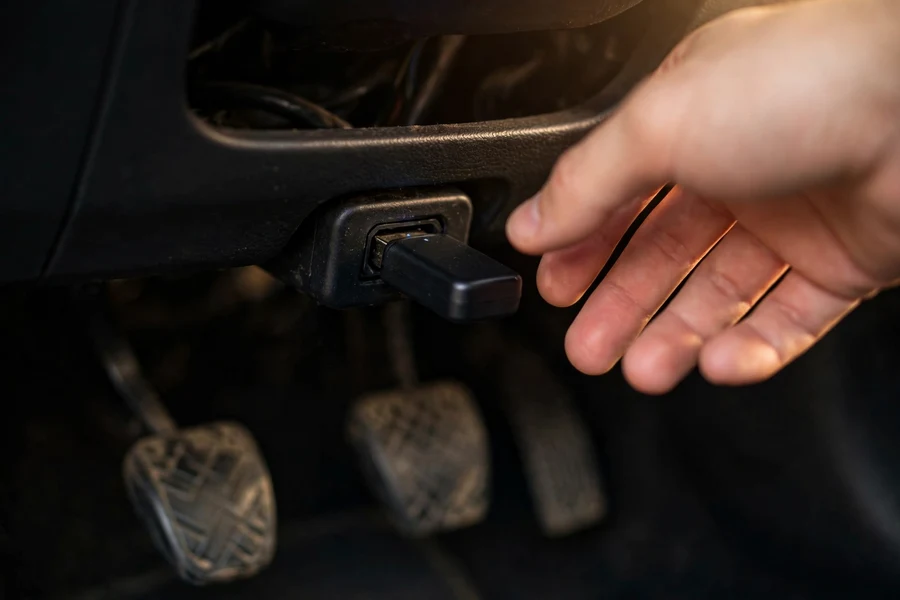
The actual workflow is deliberately simple — that is the product’s entire appeal compared with laptop tools like E-Sys or NCS Expert. Park on level ground, ignition on, engine off, parking brake set. Plug the adapter into the OBD2 port (under the dash, left of the steering column on the 3 Series) and leave it alone. Open BimmerCode, connect to the adapter — on iOS, connect from inside the app, not from the phone’s Bluetooth settings — and let it identify your car and read the available control units. This first read takes a minute or two and is also when the app establishes its backups.
Pick a control unit, find the feature in plain-English mode (the app translates BMW’s German parameter names into readable options — use this mode and stay out of Expert Mode, covered below), set the value you want, and tap Code. The write itself usually takes seconds per unit. When it finishes, follow any prompt to cycle the ignition, then verify the change works — lock the car and watch the mirrors fold, for example — before coding anything else. If a code does not seem to take effect, re-read the unit and confirm the value actually stuck; some features need an ignition cycle or a short drive before they activate, and a few depend on hardware your specific car may not have (a code for power-folding mirrors does nothing if the car lacks the folding-mirror motors).
Resist the urge to binge-code twenty features in your first sitting. The experienced pattern is: one feature, code, verify, next. It feels slow, and it is exactly what keeps a fun afternoon project from becoming a troubleshooting evening. Note that coding sessions read and write through the same OBD2 port your diagnostic tools use, so if your port has no power — adapter LEDs stay dark — check the accessory/cigarette-lighter fuse first; the 3 Series fuse box diagram shows which fuse feeds that circuit.
Popular 3 Series Codes, by Module
Below are the codes 3 Series owners actually use, grouped by the control unit that holds them. Module names differ by generation — the F30 uses FEM_BODY for body functions where the G20 uses BDC_BODY, and the E90 uses FRM for many lighting functions — so the table lists the common variants. These are all widely documented, plain-English-mode changes: nothing here requires Expert Mode. Use the picker underneath the table to filter by what you are trying to achieve.
| Feature | Module | Difficulty | Risk |
|---|---|---|---|
| Fold mirrors when locking (fob or comfort access) | FEM_BODY (F30) / BDC_BODY (G20) | Easy | Low |
| Windows & sunroof close on long-press lock | FEM_BODY (F30) / BDC_BODY (G20) | Easy | Low |
| Doors unlock when ignition is switched off | FEM_BODY (F30) / BDC_BODY (G20) | Easy | Low |
| Digital speedometer in the instrument cluster | KOMBI | Easy | Low |
| M logo / M animation in the cluster | KOMBI | Easy | Low |
| Auto start-stop: remember last setting | BDC_BODY / DME (varies by car) | Easy | Low |
| Auto start-stop: default off | BDC_BODY / DME (varies by car) | Easy | Low |
| Video in motion (head unit) | HU_NBT (F30) / HU (G20) | Medium | Medium — legal warning below |
| Sport displays (power & torque meters in iDrive) | HU_NBT | Easy | Low |
| Remove iDrive startup legal disclaimer | HU_NBT / HU | Easy | Low |
| Angel eye brightness (DRL and headlight) | FRM (E90) / FEM_BODY (F30) / BDC (G20) | Easy | Low |
| Fog lights as cornering / welcome lights | FEM_BODY (F30) / BDC (G20) | Easy | Low |
| Taillights as daytime running lights | FEM_BODY (F30) / BDC (G20) | Easy | Low |
| Rear-view camera zoom | TRSVC / HU | Easy | Low |
A few notes on the greatest hits. Mirror folding on lock is the most-coded feature in the 3 Series world for a reason: one checkbox and your mirrors tuck themselves every time you lock up, which also makes a great visual confirmation that the car actually locked — handy if your key fob has been acting up and you want unambiguous feedback. Start-stop memory is the other crowd favorite; instead of defaulting to on at every start, the car remembers your last setting, so one press of the button lasts until you change your mind. On the lighting side, angel eye brightness lets you run the halo rings at full brightness as daytime running lights rather than the dimmer factory level. And video in motion needs its own discussion — see the legality section below — because it is the one popular code with consequences beyond convenience.
Find codes for your goal
Pick a goal and your generation. Each code shows its module plus a difficulty and risk rating.
Expert Mode: What It Is and Why Beginners Should Skip It
Alongside the plain-English options, BimmerCode offers an Expert Mode that exposes the raw parameters inside each control unit — the long lists of German abbreviations and coded values that professional tools work with. This is where the app’s power is unlimited and where its safety rails come off. In normal mode, the app only lets you choose from validated options for your specific car; in Expert Mode, you can write values the app has never validated, including ones that make no sense for your hardware.
The rule is simple: if you had to look up what a parameter does and still are not sure, do not change it. Expert Mode exists for experienced coders working from known-good parameter guides for their exact chassis and module software version — not for exploring. A wrong value in Expert Mode can trigger fault codes, disable a function, or in rare cases leave a module needing dealer-level recovery, which is precisely the situation the automatic backup is designed to rescue you from. There is no feature in the plain-English mode worth reaching Expert Mode for; every code in the table above lives in normal mode. Consider Expert Mode a “do not enter” sign until you can read a parameter trace and know exactly what reverting it entails.
Video in Motion and the Law: Read This First
Video in motion — allowing the head unit to play video while the car is moving — is one of BimmerCode’s most requested features and the only common one with genuine legal exposure. BMW locks video playback above a few mph for a reason: a moving image in the driver’s field of view is a textbook distraction, and NHTSA’s distracted-driving data attributes thousands of fatal crashes a year to distraction. Many jurisdictions prohibit video displays visible to the driver while the vehicle is in motion, and enforcement varies by state and country.
The responsible position: code it only where it is legal, use it only with the car parked (passengers watching while you wait, for example), and never as a driver aid in motion. If you are unsure about your local law, leave this one off — every other code in this guide carries none of this baggage. And if your iDrive ever behaves strangely after head-unit coding — frozen screen, lost Bluetooth pairings — our iDrive reboot and Bluetooth pairing guide walks through the standard reset before you assume the coding caused it.
When Something Goes Wrong: Restoring Your Backup
Most coding problems are not emergencies; they are a feature not behaving as expected. Work through them in order. First, re-read the control unit and check whether your change actually stuck — a surprising number of “it didn’t work” cases are a value that never wrote because the ignition cycled or the adapter dropped mid-session. Second, cycle the ignition fully off, wait a minute, and restart; several body-module features only initialize on a clean boot. Third, check whether the feature depends on hardware you assumed was present — mirror folding needs folding mirrors, camera zoom needs the camera module, tire readouts need the right sensors.
If a change actively misbehaves — a warning light, a function that stopped working, an error in the app — restore the backup. In BimmerCode, open the control unit you changed and use the restore function to roll it back to the pre-coding state the app saved automatically. Restore one unit at a time and verify between restores, just as you coded one change at a time. This undoes the change cleanly because the backup is the module’s original data, not an approximation.
The scenarios that genuinely need outside help are rare and almost always traceable to the backup rules being skipped: coding with a dying battery that cut out mid-write, unplugging the adapter during a write, or experimenting in Expert Mode without knowing the original values. If a module will not communicate at all after such an event, stop, do not keep writing to it, and get the car to a BMW specialist or dealer — module recovery is a professional job. This is the entire reason the backup section of this guide exists, and why “confirm the backup exists” comes before “code your first feature” in every careful workflow.

Frequently Asked Questions
Is BimmerCode safe? Can it damage my car?
Used as intended — plain-English mode, one change at a time, backup confirmed — BimmerCode is low-risk: it changes configuration values the car’s software already supports, and the app saves a restorable backup before every write. The realistic risks come from the edges: a weak battery dying mid-write, unplugging the adapter during coding, or changing raw parameters in Expert Mode without understanding them. Follow the backup rules in this guide and the worst normal outcome is a feature that needs to be restored, not a damaged car.
Will coding void my BMW warranty?
There is no universal yes or no, which is the honest answer. Coding does not flash the ECU or alter emissions equipment, so it is far less likely to cause warranty friction than a performance tune — but dealers can see that non-factory values are present, and if a coded feature is implicated in a failure, a warranty claim on that system could be questioned. The practical advice owners follow: code convenience features you can restore, keep your backups, and return the car to stock values before warranty service on any related system. For powertrain concerns specifically, a tune (not coding) is what traditionally creates warranty risk.
Why did all my codes disappear after a dealer visit?
A dealer software update or module replacement rewrites the control units with fresh factory data, which wipes coding changes — the car simply returns to stock behavior. Nothing is broken; your features just need re-applying. This is routine, which is why keeping the app and adapter (and your list of what you coded) pays off: reconnect, re-apply your codes one by one, and you are back where you were in fifteen minutes. Some owners re-code in the dealer parking lot.
Can BimmerCode add horsepower or remap my engine?
No. BimmerCode changes convenience and configuration settings; it cannot alter the engine calibration, boost, timing, or fueling. Horsepower gains require an ECU flash from a tuning platform such as MHD or Bootmod3 (or a professional dyno tune), which is a fundamentally different \u2014 and higher-risk \u2014 modification with its own warranty and reliability considerations. If your goal is performance, you are shopping for a tune, not a coding app; if your goal is making the car behave the way you want day to day, coding is the right tool.
Does BimmerCode work on the E90, or only newer 3 Series?
It works on the E90 generation with caveats: E-series support starts with 2008+ builds, the list of available codes is shorter than on the F30, and you need a compatible adapter such as the MHD Universal Wi-Fi, MHD Wi-Fi, or vLinker BM+. Pre-2008 E90s have very limited support. The F30 (2012–2018) is the best-supported 3 Series in the app, and the G20 (2019+) is supported with some codes living in different modules. Always check the app’s supported-cars information for your exact model and year before purchasing.
BimmerCode earns its reputation because it respects the boundary between configuration and calibration: it unlocks the convenience features your 3 Series already had, without touching the engineering that makes it a BMW. Pick a proven adapter, confirm your backup, change one thing at a time, and stay out of Expert Mode — do that, and coding is one of the most satisfying cheap upgrades these cars offer.